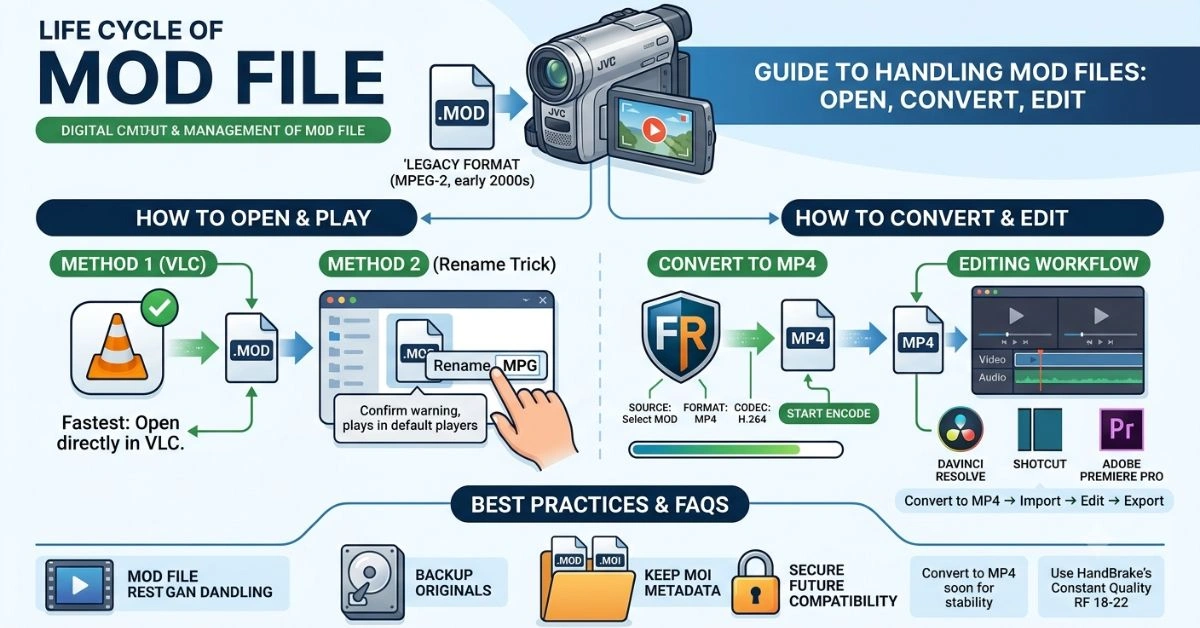
A MOD file is a legacy video format used by older digital camcorders (like JVC, Panasonic, and Canon) that saves video in an MPEG-2 format. These files were common in the early 2000s but are no longer natively supported by most modern software or devices.
Why MOD Files Cause Problems Today
MOD files combine MPEG-2 video with proprietary indexing. Many media players, video editors, and operating systems fail to recognize them correctly, resulting in playback errors, missing audio, or import failures. The good news: you can open, play, and convert them quickly with free tools.
How to Open MOD Files
Method 1: VLC Media Player (Recommended – Fastest)
- Download and install VLC from the official videolan.org site.
- Open VLC.
- Go to Media > Open File.
- Select your .MOD file and click Open.
- VLC will play the video immediately in most cases.
Method 2: Quick Rename Trick
- Locate the .MOD file in File Explorer (Windows) or Finder (Mac).
- Right-click the file and choose Rename.
- Change the extension from .MOD to .MPG (or .MPEG).
- Confirm the warning about changing the file type.
- Double-click the renamed file — it should now open in most media players, including Windows Media Player or QuickTime.
Tip: Always keep a backup of the original .MOD file before renaming.
How to Convert MOD to MP4 (Best for Compatibility)
Use HandBrake — a free, open-source tool trusted by professionals.
Step-by-Step Conversion:
- Download HandBrake from handbrake.fr.
- Open HandBrake and click Source > File.
- Select your .MOD file (or renamed .MPG version).
- Choose a preset:
- Fast 1080p30 for general use, or
- High Profile for better quality.
- Under Summary, set Format to MP4.
- Go to the Video tab and set Codec to H.264 (or H.265 for smaller files).
- Click Browse to choose a save location and filename.
- Click Start Encode.
Conversion usually takes a few minutes depending on file length and computer speed. The resulting MP4 file works on smartphones, YouTube, social media, and all modern editors.
How to Edit MOD Files
Do not edit raw MOD files directly — convert them to MP4 first for stability.
Recommended Free/Paid Editors:
- DaVinci Resolve (Free): Best quality, excellent color tools. Import the converted MP4.
- Shotcut or OpenShot (Free): Lightweight and simple.
- Adobe Premiere Pro (Paid): Professional features if you already have it.
Editing Workflow:
- Convert MOD → MP4 using HandBrake.
- Import the MP4 into your editor.
- Cut, add transitions, color correct, and export to your desired format.
Common Troubleshooting
- No audio: Try the rename trick or re-encode with HandBrake. Some players struggle with the original audio stream.
- Choppy playback: Use VLC or convert to MP4.
- File won’t import: Rename to .MPG first, then convert.
- Multiple files (MOD + MOI): Keep both files together. The .MOI file contains metadata.
- Batch conversion: HandBrake supports adding multiple files via the Source queue.
Best Practices for Legacy Camcorder Footage
- Store originals safely on external drives or cloud backup.
- Convert all MOD files to MP4 soon to prevent future compatibility issues.
- Use HandBrake’s Constant Quality setting (RF 18-22) for a good balance of quality and file size.
This approach works reliably on Windows, Mac, and Linux. With VLC for quick viewing and HandBrake for conversion, your old camcorder videos become fully usable again.
FAQS
Q1. What is a MOD file?
A MOD file is a legacy video format used by older JVC, Panasonic, and Canon camcorders. It uses MPEG-2 video.
Q2. Can VLC play MOD files?
Yes. VLC Media Player can open and play MOD files directly without conversion.
Q3. How do I convert MOD to MP4?
Use free HandBrake software. Open the MOD file, select MP4 format, and click Start Encode.
Q4. Is it safe to rename MOD to MPG?
Yes. Renaming .MOD to .MPG is a safe and common trick that allows most players to open the file.
Q5. Which software is best to edit MOD files?
Convert MOD to MP4 first, then edit using DaVinci Resolve (free) or Adobe Premiere Pro.
Q6. Do I need the .MOI file?
Keep the .MOI file with the .MOD file as it contains important metadata.
For More Information Visit AmgNews.